Users
The Users menu can be used to add members to your organization, so that they can use the same features through their own OutWatch account.
User Types
The different user types available within OutWatch are described below. Only an Admin User or Superuser can create and manage user accounts. By default, a user will be created in the same organisation as the Admin user who created it.
Once a user is created, their email address cannot be changed. If you need to change someone's email address, you will need to create a new user, and delete the old one.
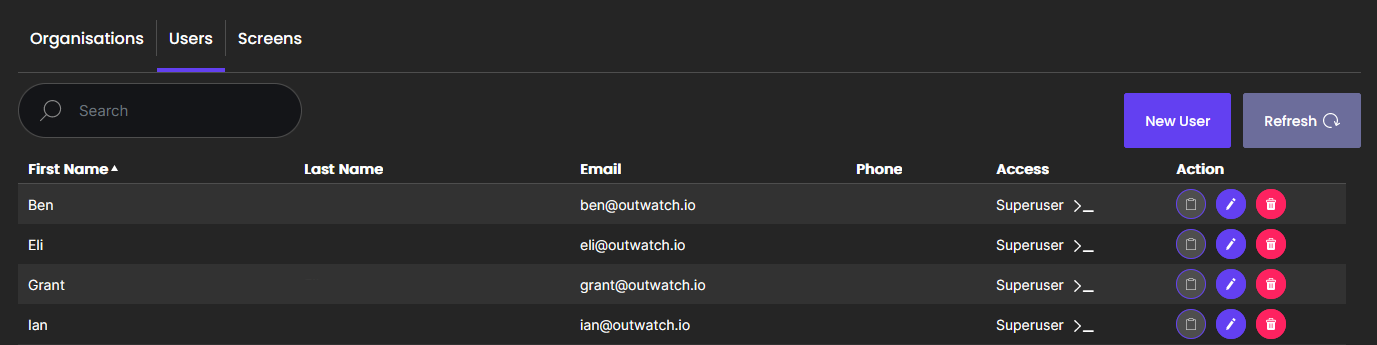
When viewing the user list, you can see the users that have access to the Console, as indicated by the >_ symbol. Users may be granted access to the Console by contacting OutWatch.
Use the search bar to filter by first name, last name, organisation, email, phone, or role. The list will be filtered as you type.
You can sort the list by first and last name, email, and phone by clicking on the respective headers.
Operations Manager
The Operations Manager access is for people who will be servicing and maintaining the screens. They will have access to the Diagnostics module so that they can view data about the health of the screens.
Content Owner
The Content Owner access is for people who will be managing the content that is displayed on the screens. They will have access to the Reports module as well as the Live module, including the media player.
Player
Only used in a Player-only subscription, these users can use the Player page to access the OutWatch media player.
Advertiser
Gives access to the Creatives page. Meant for advertisers who want to generate reports for their campaign management.
Admin
Admins have access to all options for a given organization and additionally can create extra users and edit screen entries.
How to Add a New User
Only people with Admin access will be able to add new users.
From the Users screen, click the New User button. If you manage multiple organisations, you will have to select which organisation to add the user to.
Input the user's name, email address, and phone number. The phone number must include a country code (including plus sign) and be of valid length e.g. +64 27 123 4567.
Select which modules this new user will have access to. These can be edited later. You will only see the access options that your organization has the ability to enable.
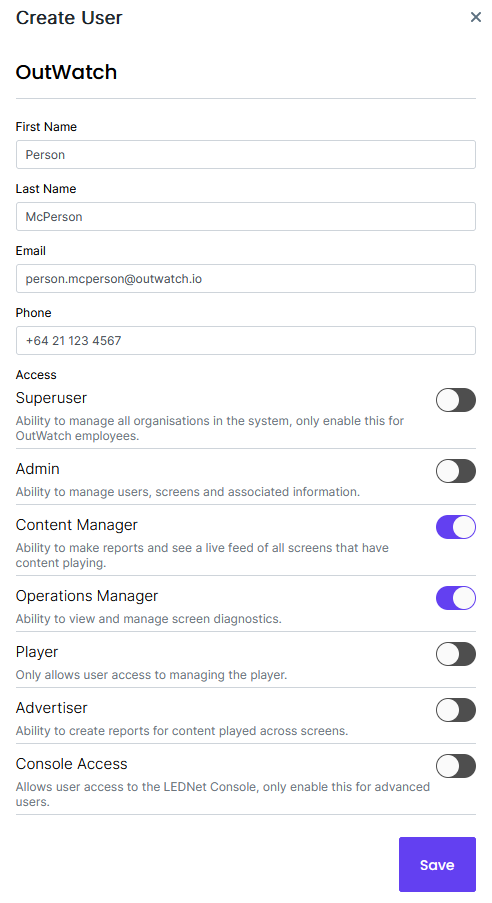
In this example, Person McPerson needs access to screen diagnostics and the Live view, so we choose the "Content Manager" and "Operations Manager" options.
How to Edit a User
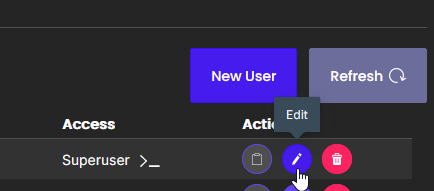
If you wish to make changes to a user, click the Edit button located under the Action column. This will bring up the user details pop-up for you to make changes. When you're done, click the Save button.
How to Delete a User
To delete a user, click the Delete button located under the Action column.

A confirmation pop-up will appear for you to confirm the action. If you are sure you would like to delete a user, click the Confirm Delete button.

If you need to reinstate a deleted user, it is possible to recover it. Please contact OutWatch support at support@outwatch.io for assistance. Please note it is not possible to create a new user with the same email as a previously existing user, even if the user has been deleted.