Reverse Creative Search
OutWatch enables advertisers to perform a reverse-search of their creatives. The Creatives module takes an image provided by the end user and attempts to match it to existing proof records for the screens they have access to.
OutWatch reverse search is a BETA feature.
During the beta period, Diagnostics subscribers will get free access to this feature. This feature will be part of a separate subscription in the future.
This article and the feature detailed within it are subject to change.
Searching by Image
To search for proof records for a given creative, just drop in the image into the field in the center of the page.
You can change the date range or resolutions to scan, as well. By default, the reverse image search will look at the past 7 days, and will search all screen resolutions.
Your uploaded creatives may not match the size of the screen -- this is okay!
Our reverse search works regardless of the original image size. Use the creative file you supplied to be displayed on the screen.
When you are done adding creatives to search, click on "Scan Proof Records". After a quick search, you'll be presented with the results.
If you ever want to alter the time range, resolutions, or images used in the records scan, you can click "Back" in the top left to return to the search settings.
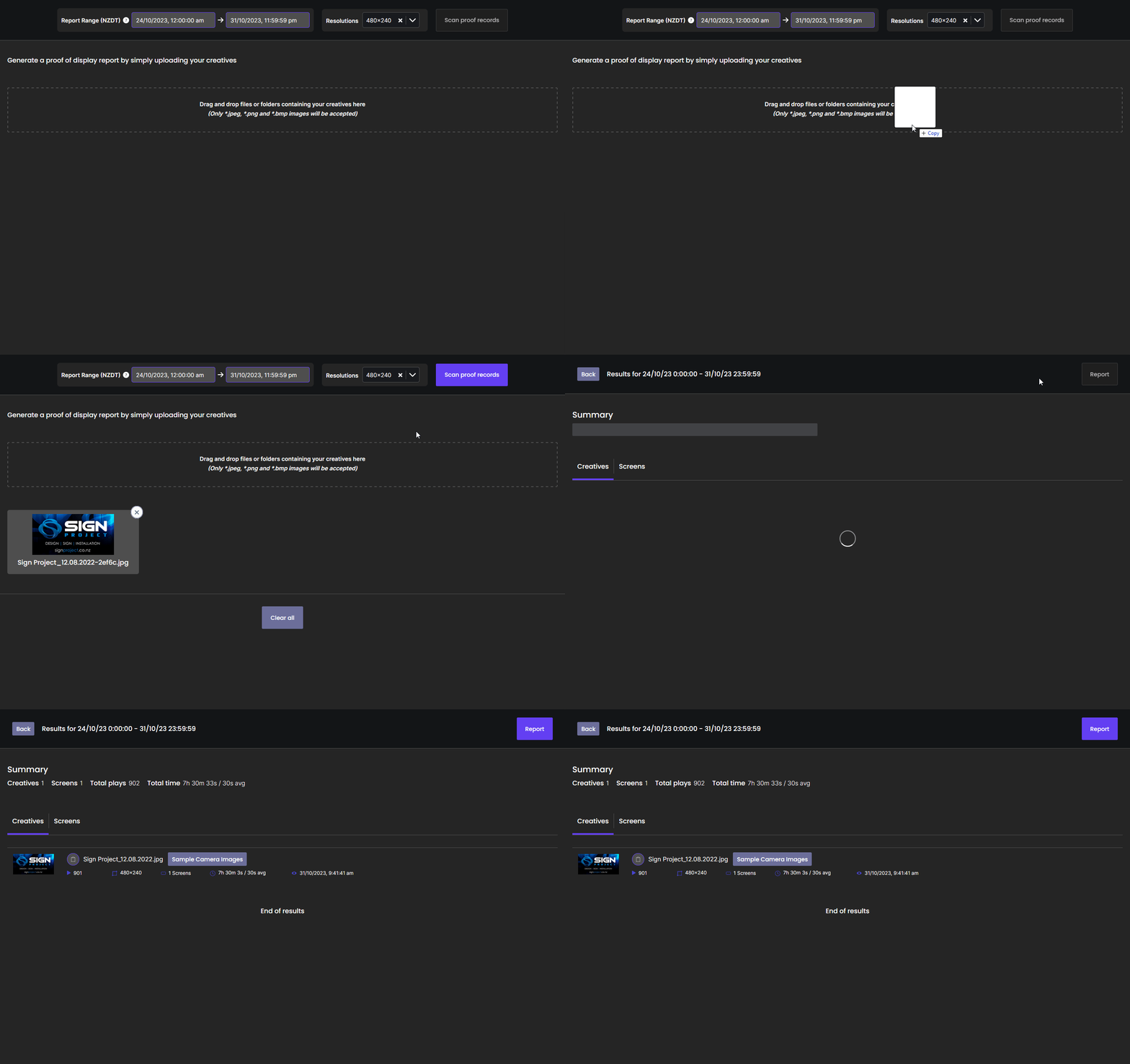
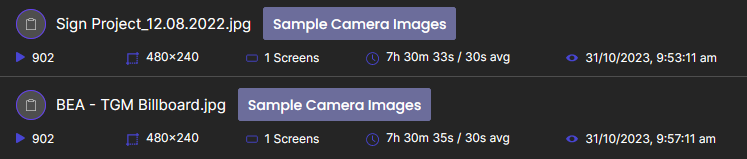
You will be presented with information regarding each image. You can upload multiple at a time. You can view:
- Total number of plays in the given time period
- Resolution the image was played
- Number of screens this image plays on
- Total time played and average time played before changing to another image
- Time when image was last seen in the proof records
You can also click on the image itself to pop it out and view it larger.
Sampling Camera Images
This option is only available if a screen has a camera installed and integrated with OutWatch.
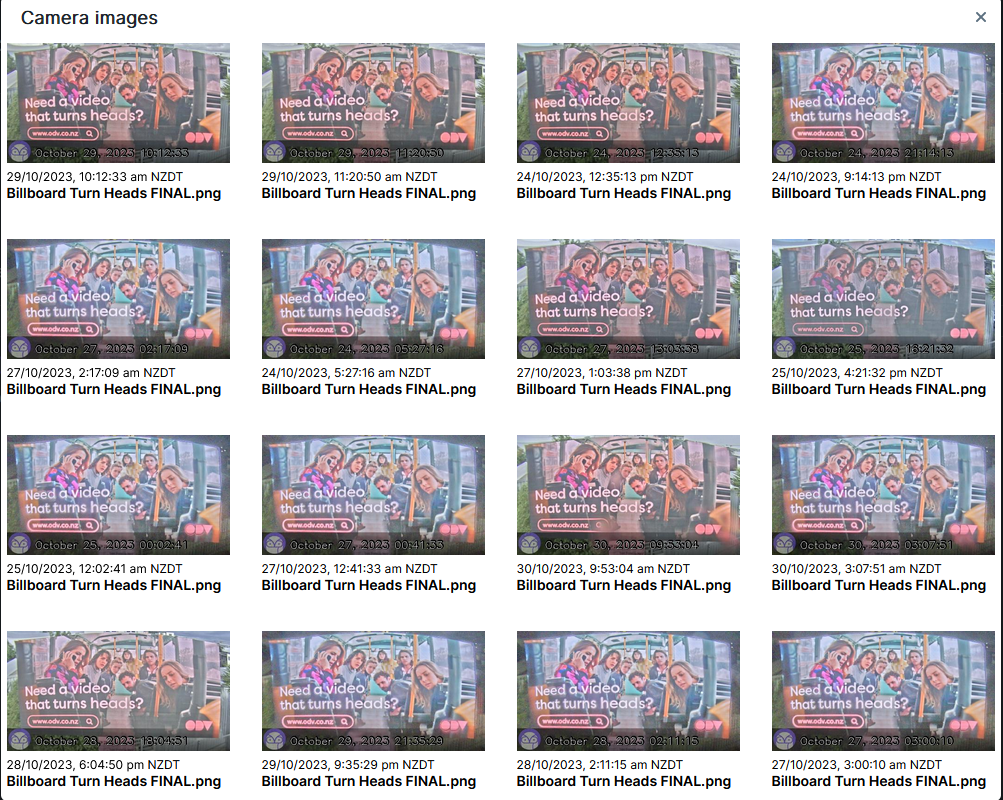
Pressing the "Sample Camera Images" button will bring up an array of camera images showing what your image looked like on the screen at a range of times and days.
Generating Reports
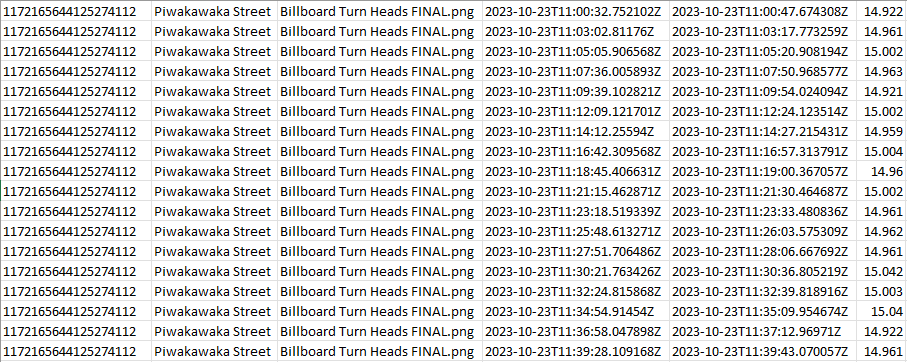
Given your chosen resolutions and scan range, you can generate a report based on the creatives you have uploaded. Clicking on the "Report" button in the top right will bring up a pop-up window prompting you to enter a name for the report file, and the type of file you wish to export. The default CSV option should be compatible with most systems, and the Talon CSV is for use with Talon Technologies.
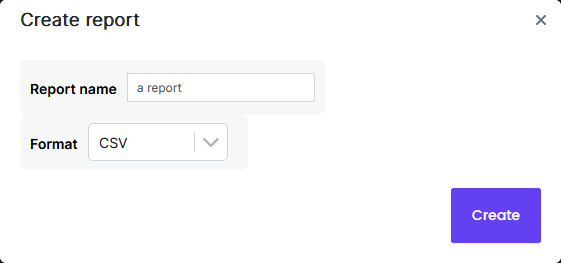
Hit Create to export a report! It will be downloaded onto your computer automatically. These CSV files are designed to work with third-party campaign management systems.