Custom Reports
OutWatch allows you to create custom Proof of Display reports. The reports can be customised with a date range and can include all images on a screen, or just particular images that may be part of a single campaign, for instance.
The CSV files are compatible for use with third-party campaign management systems.
OutWatch report generation is a BETA feature.
During the beta period, Diagnostics subscribers will get free access to this feature. This feature will be part of a separate subscription in the future.
This article and the feature detailed within it are subject to change.
How to Create a Report
You can view report data on-screen or export it into different formats. To access this module, click on Reports in the top navigation menu.
Choose Dates and Screens
To create a report, choose a date range by clicking on the field labelled Select Start Date and choosing the start and end dates from the calendar. You can also adjust the time of day if needed.
You then must select a screen in the "Screens" dropdown. You can select multiple screens.
Click the Apply button to see the creatives that were played during that time period on that screen or set of screens.
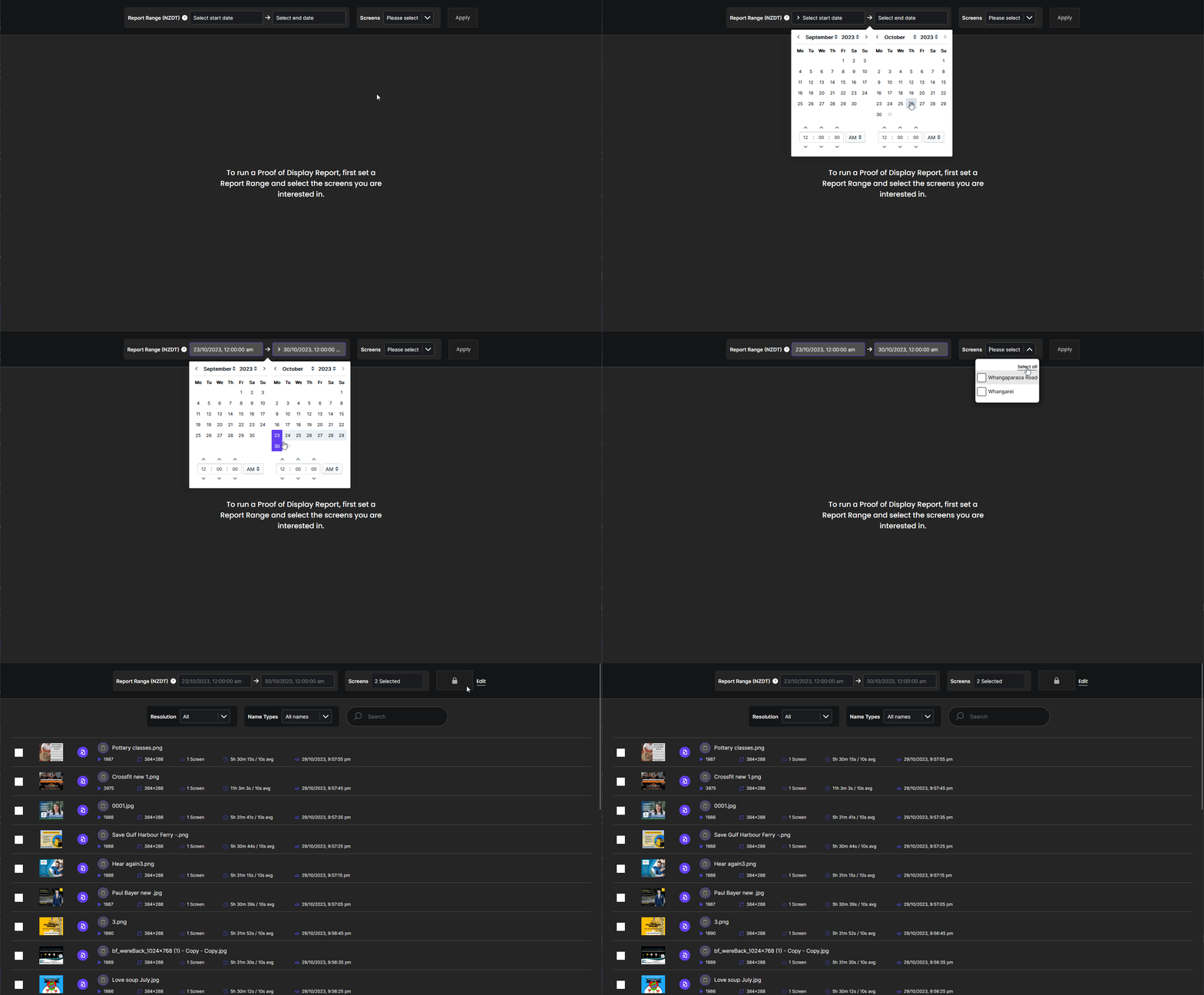
You can filter the images screen resolution and name type using the dropdowns. You can search for specific image filenames using the search box.

Select Creatives for Report
To generate a report, choose the creatives you want to include by ticking the box beside them. Click a thumbnail to see a larger version of the image.
A user can select as many images as they wish for a report. The selected creatives will line up along the bottom of the window. You can remove a creative from a report by either unticking it's listing or clicking on the x button on the respective image at the bottom of the screen.
Once you have selected the images you want to include in the report, click the Report button.
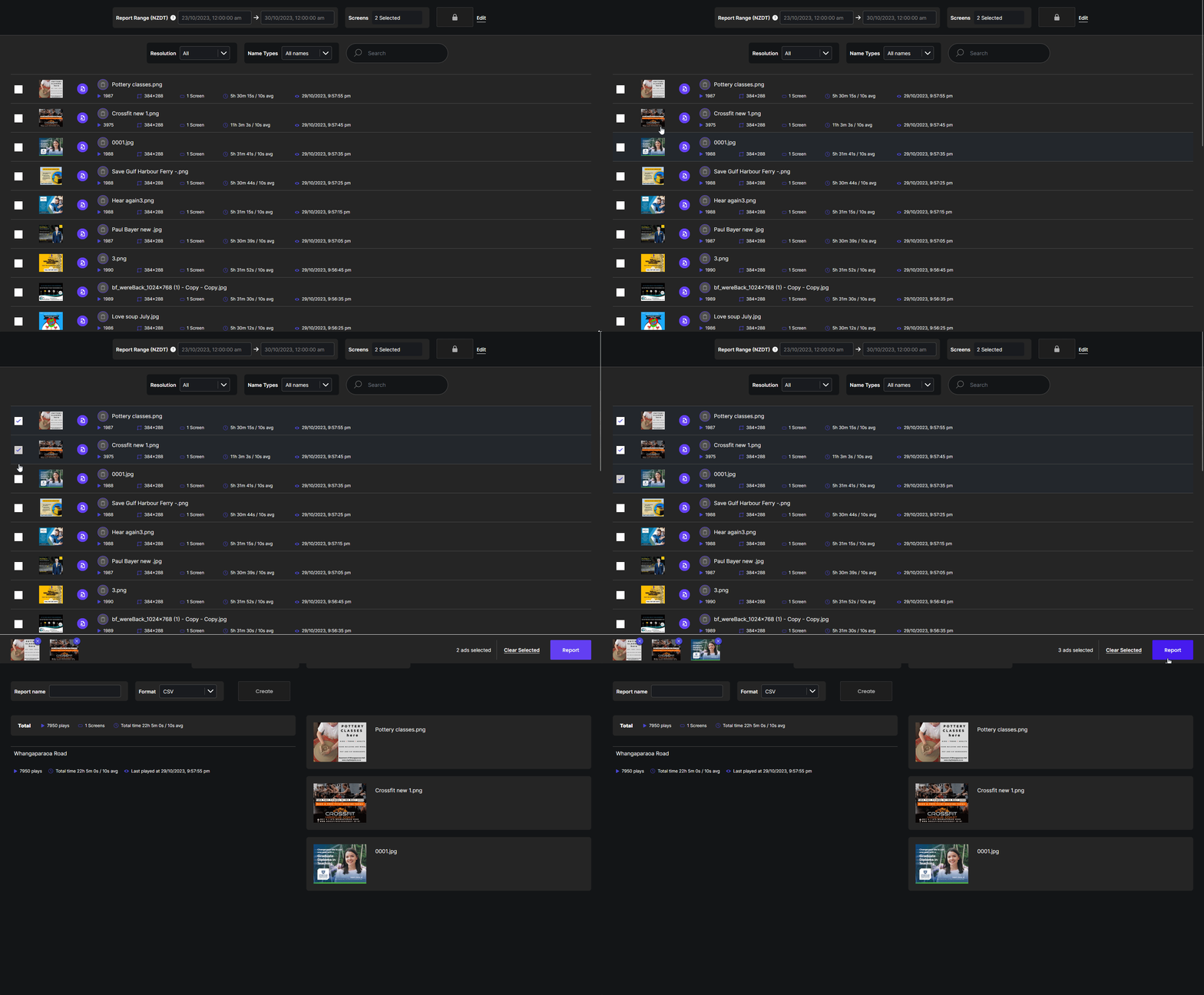
After selecting a date range, you will see a list of images and some snapshot details about each creative. This includes:
- Total number of times it was played
- Dimensions of the image
- Number of screens it was shown on
- Total amount of time it was displayed
- Average length of each appearance
- The last time it was displayed within the selected date range

Export Report
The next screen will summarise the report details and show you all of the images that will be in the report. This is also where you input the name of the report and choose the format. The default CSV option should be compatible with most systems and the Talon CSV is for use with Talon Technologies.
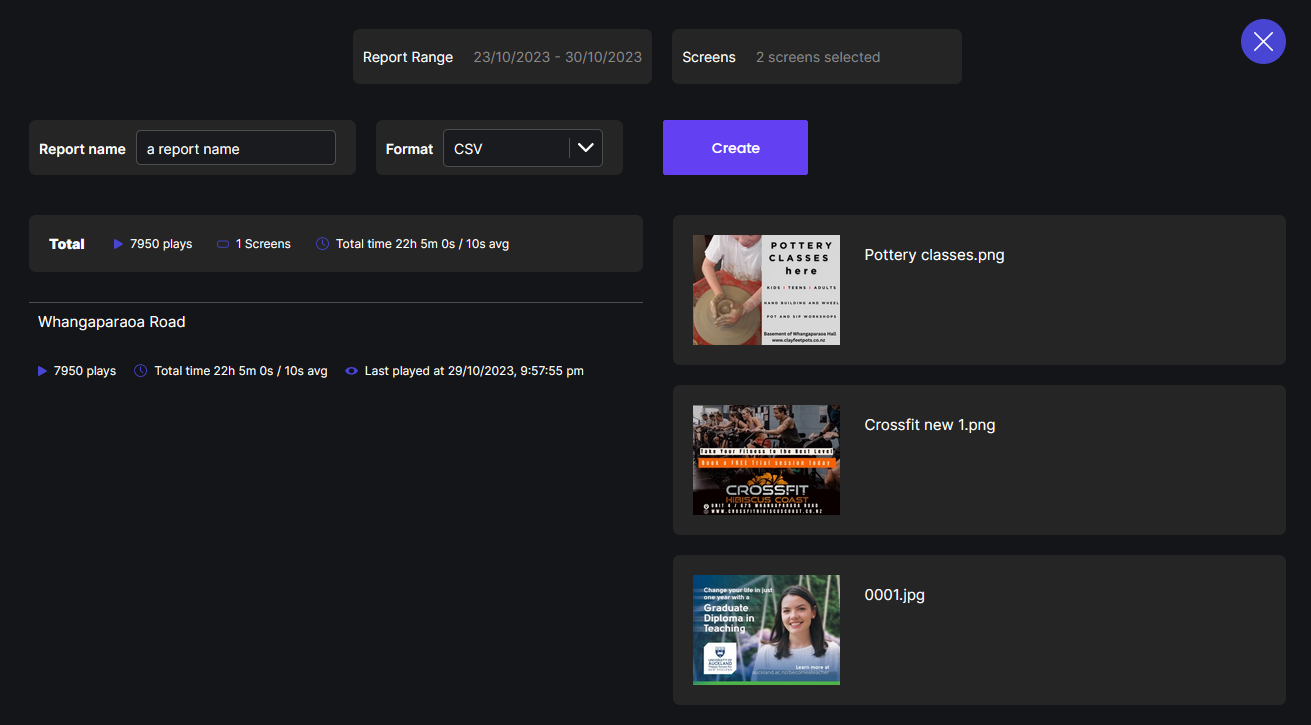
If all details are correct, click the Create button to generate the report. A pop-up will appear once the report is ready for download. Click the Download button and your report will be downloaded. As these reports are designed for use with campaign management systems, they do not include a header row.
Edit Report Scope
If you wish to edit the scope, click the x to return to the previous screen.
The report scope is locked until you click the Edit button. This way you can produce reports for different creatives within the same date range and screens just by changing the images you would like to include in the report.

If you want to select a new date range or different screens, click the Edit button to unlock the fields.