Camera View
The Camera View is designed to integrate a screen's camera with OutWatch's Proof of Display system. To access it, click on the "camera" icon that becomes visible when hovering over a screen's creative in the Live View.
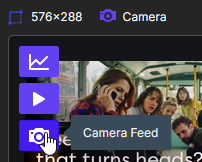
Once this is open, you can choose from the Live View or the History View.
Only AXIS cameras or cameras with RTSP feeds accessible by OutWatch are supported.
Most IP-based cameras should have some form of RTSP feed, but they need to be accessible in the same network as the player machine to function with OutWatch. If you believe your screen camera should be integreated with OutWatch, contact support.
Live
Live camera view allows you to view a snapshot of the ad that is currently playing on the screen, updating as the ad changes, next to the Proof Result captured by the Proof of Play system.
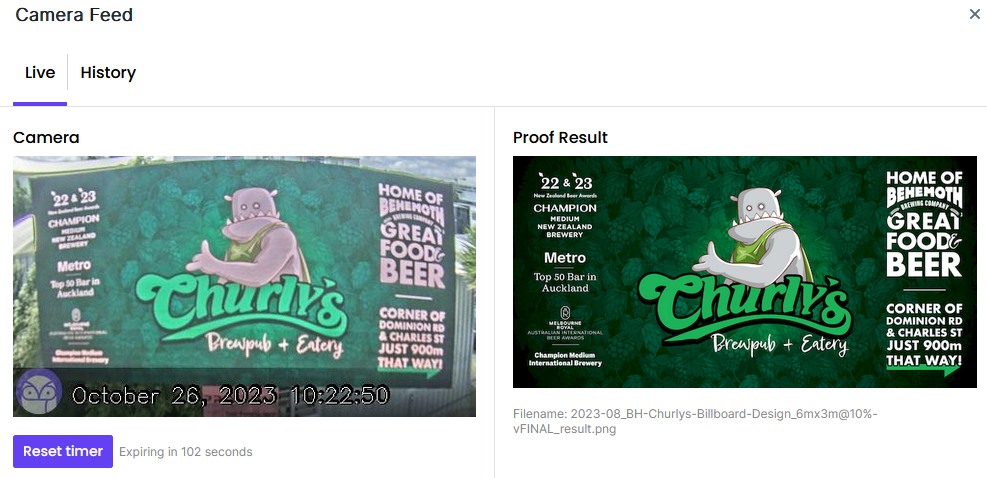
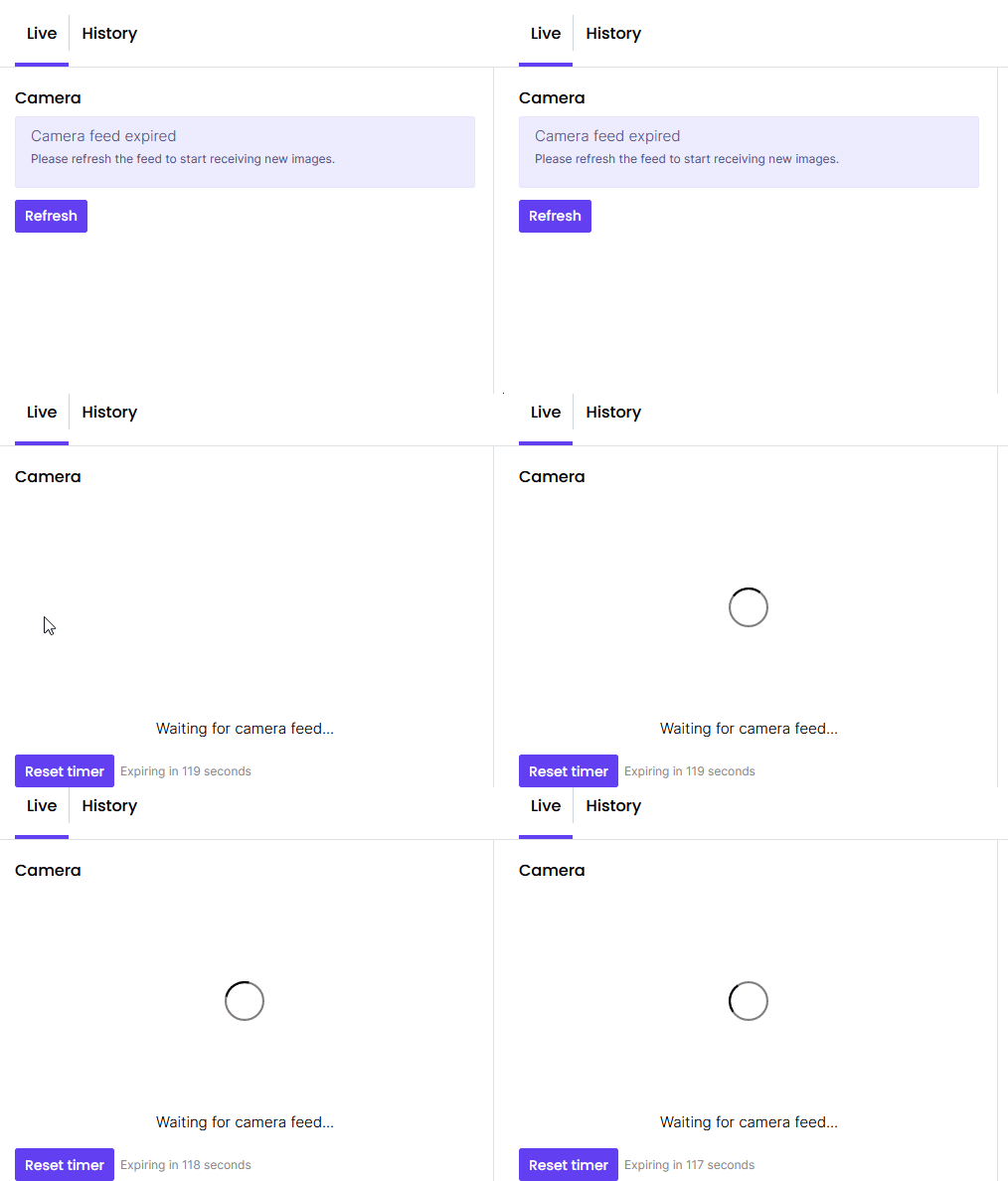
To save on bandwidth, the camera view will expire in 2 minutes. If you wish to extend your session, you can either press Refresh when the feed expires, or press the "Reset Timer" button at any time to reset the timer to 2 minutes.
History
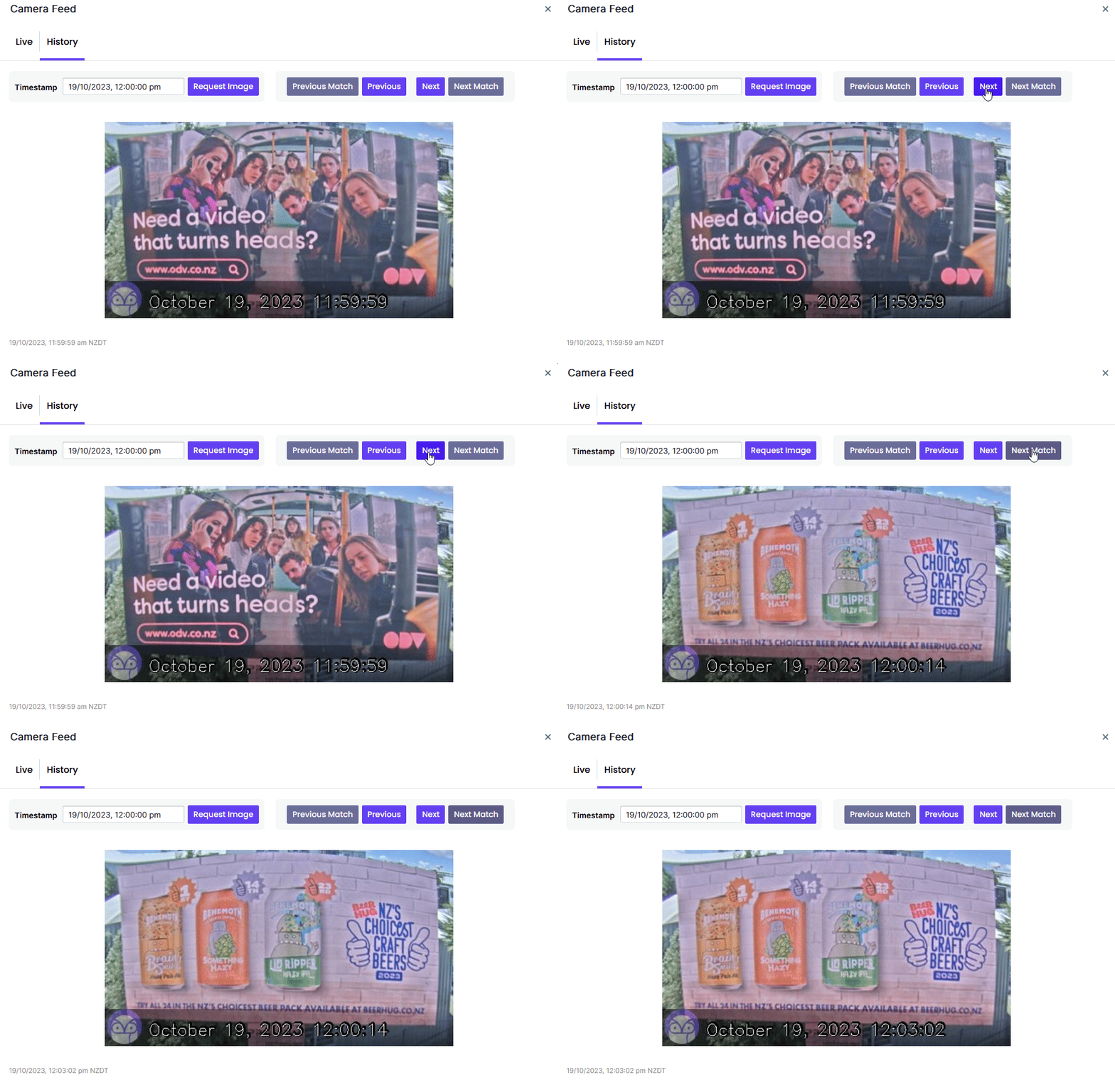
History View allows you to choose a specific time and have it's proof record come up. To search for an image, you input a date and time, and press the Request Image button.
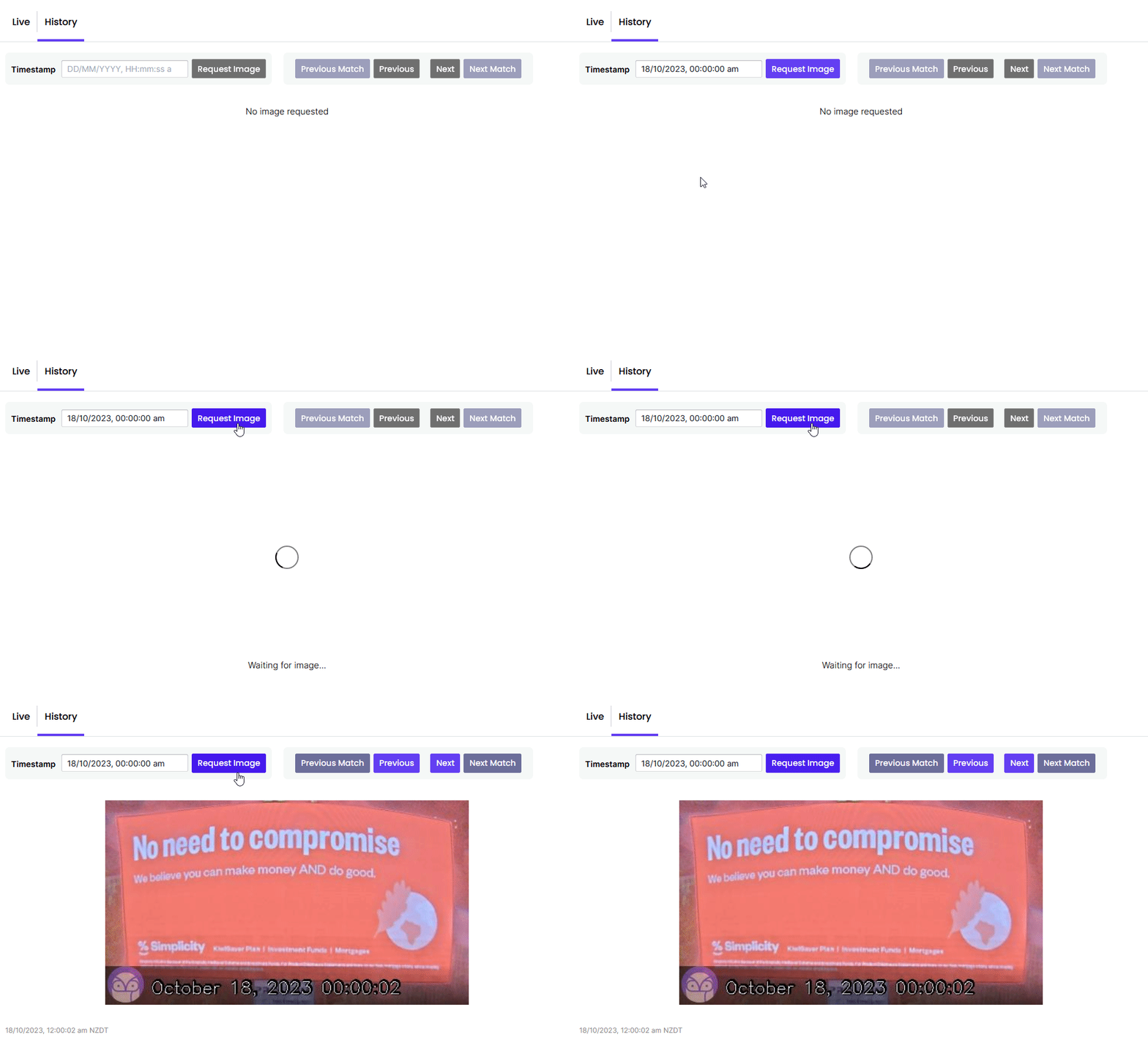
You can also use the "Previous" and "Next" buttons to move to the previous or next advertisement displayed chronologically, or the "Previous Match" and "Next Match" buttons to skip to the next instance of the same advertisement being displayed. Fetching from the records may take a few seconds.