Screens
The Screens menu can be accessed from the Admin module.
Use the search bar to filter by name, site tags, resolution, and tile type.
You can sort the list by clicking on any of the headings except ID and Action.

How to Add a New Screen
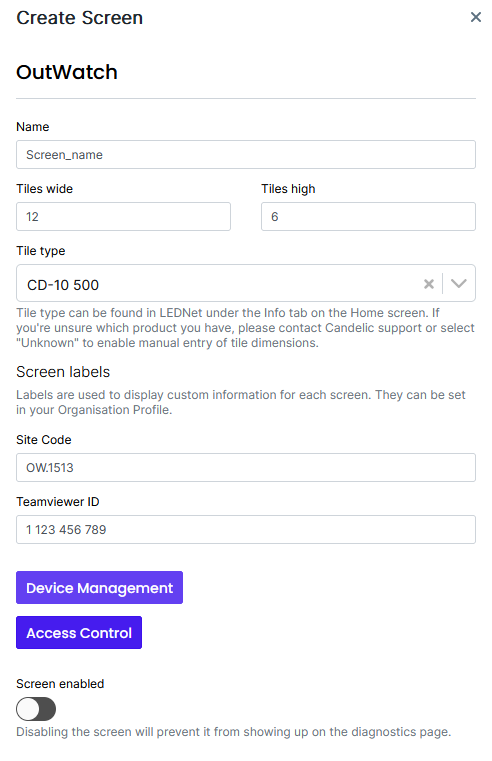
Click on "New Screen in the top right." A window will pop up prompting you to enter details about the screen, including tile type, screen size in tiles (resolution is calculated from tile type and number of tiles,) and any applicable screen labels which have been set up for your organization.
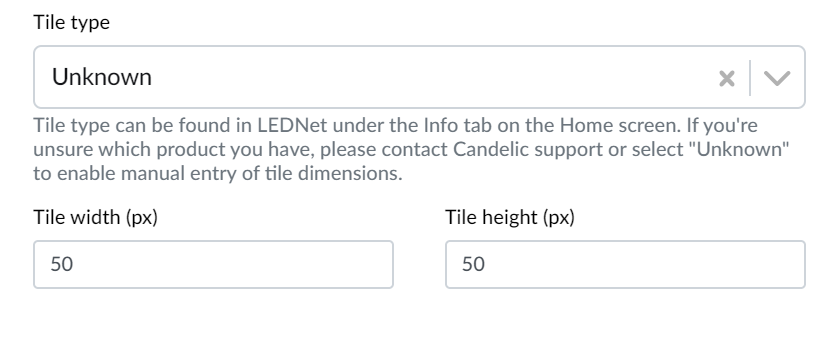
If your tile type isn't shown you can choose Unknown and enter the height and width of the tiles in pixels.
Device Management
Device management is for adding an applicable and configued Avior power control device to the screen, or enabling the camera.
- To add an Avior device, enter the device's ID and password.
- To enable the camera, turn on the switch.
When you have configured the devices, press Done. Make sure to save afterwards!

Access Control
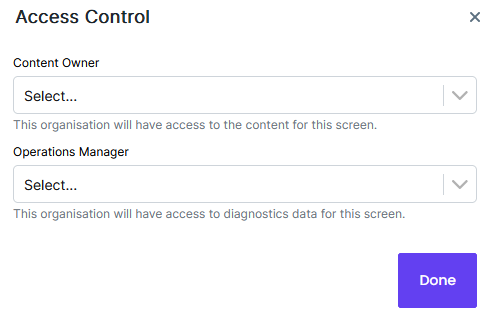
If you have any external organizations who need access to your screen diagnostics or content (e.g. technicians or a monitoring company,) after OutWatch has linked the two organizations, you can on a per-screen basis enable specific permissions here. Content Owner is for people who need to use Live, Reports or Creatives, and Operations Manager is for people who need to use Diagnostics.
Click Save when you have entered all details to close the popup window.
How to Edit a Screen
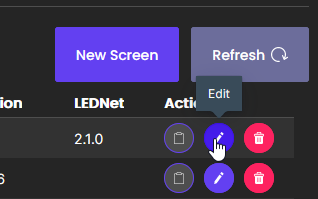
If you wish to make changes to a Screen, click the Edit button located under the Action column. This will bring up the Screen details pop-up for you to make changes. When you're done, click the Save button.
How to Delete a Screen
To delete a Screen, click the Delete button located under the Action column.
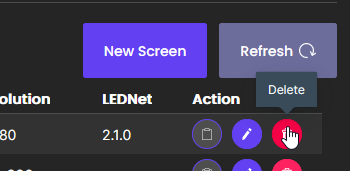
A confirmation pop-up will appear for you to confirm the action. If you are sure you would like to delete a Screen, click the Confirm Delete button.

If you accidentally delete a screen, it may be possible to recover it. Please contact OutWatch support at support@outwatch.io for assistance.